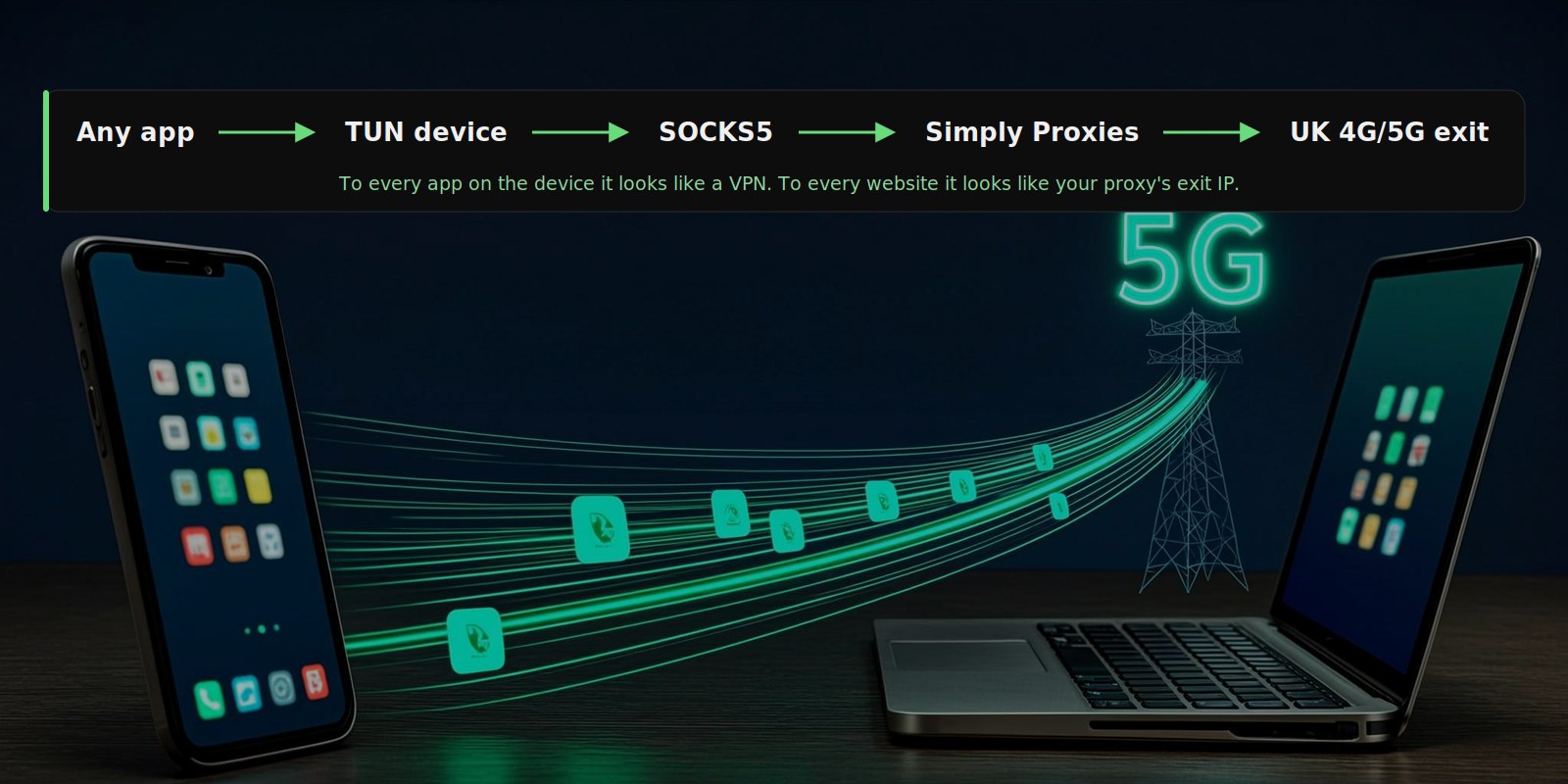
A proxy is normally something you configure per app: your browser, your scraper, your automation script. That is fine when the tool speaks HTTP or SOCKS5 natively, but plenty of software does not. Mobile apps, desktop clients, app stores, game launchers and OS background services mostly have no proxy setting at all, so they keep connecting from your real IP no matter how carefully your browser is configured.
The fix is a small class of tools that turn a SOCKS5 proxy into a device-wide tunnel. They create a virtual network interface (a TUN device), point all of the device's traffic at it, and translate that traffic into SOCKS5 connections towards your proxy. To every app on the device it looks like a VPN. To every website it looks like your proxy's exit IP.
This guide shows how to set it up on Android using SocksTun, a free and open-source app available on F-Droid, and on desktop with tun2socks. It also covers the two things most guides skip: how to keep DNS from leaking your real location, and what is actually encrypted end to end.
One caveat up front: this makes your proxy behave like a VPN for routing purposes. It does not magically add VPN-grade encryption to the connection between your device and the proxy. The "what is actually encrypted" section below is upfront about that trade.
How It Works
A TUN device is a virtual network interface managed by software instead of a physical network card. When a tun2socks tool runs, it tells the operating system "I am your network", so every TCP connection every app tries to make lands in the TUN device. The tool then re-creates each connection as a SOCKS5 session towards your proxy, and copies bytes between the two. The flow looks like this:
- Any app on the device opens a TCP connection to some host.
- The OS routes it into the TUN device (the tool's virtual network).
- The tool opens a SOCKS5 connection to your proxy and relays the bytes.
- The proxy forwards them to the target from its exit IP.
On Android this uses the built-in VpnService API, which is why SocksTun can capture all traffic without root. On Windows, macOS and Linux the same job is done by tun2socks utilities that create the TUN interface for you.
The UDP limitation
TCP is straightforward: each connection maps cleanly onto a SOCKS5 session. UDP (used by WireGuard, QUIC, some games and voice apps) can only cross a SOCKS5 proxy if the server supports UDP relay. Many proxy services, including ours, are TCP-only. The practical effect is mild: browsers and most apps fall back to TCP automatically when QUIC does not connect, and anything that strictly needs UDP simply stays off the tunnel.
What You Need
- SOCKS5 proxy credentials. For Simply Proxies these are in your dashboard: host
proxy.simplyproxies.com, port6890, plus your proxy username and password. New accounts get 500 MB free, no card required. - A tun2socks client. SocksTun on Android (F-Droid), or a tun2socks binary on desktop.
- About ten minutes.
Android Walkthrough with SocksTun
SocksTun is a lightweight, open-source (MIT licensed) tun2socks client for Android. It uses the VpnService API, needs no root, and stays out of your way. You can install it from the F-Droid client by searching for "SocksTun"; open it and edit the Default profile the app ships with (or create a new one). The configuration screen below shows every option with a number; the list walks through them in order, using the Simply Proxies endpoint as the worked example.
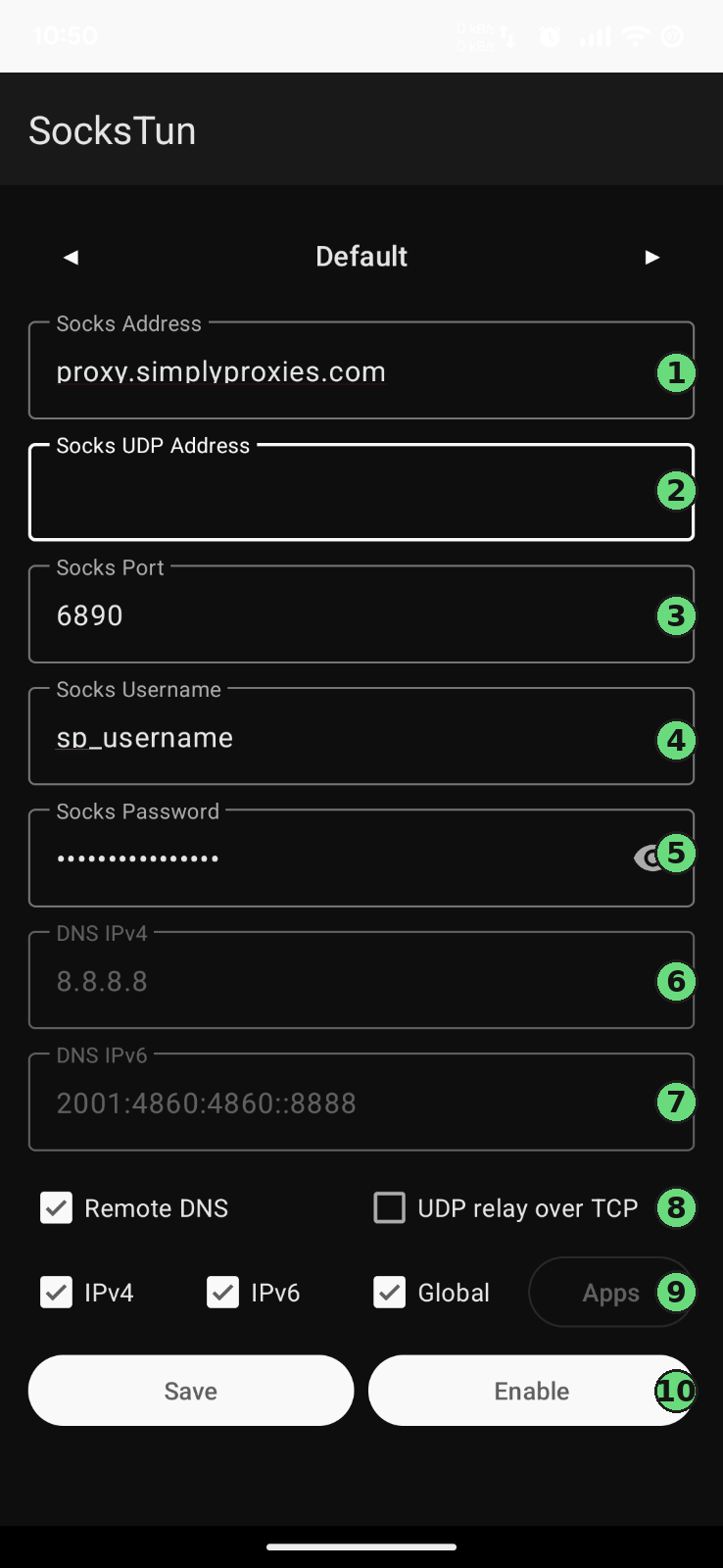
- Socks Address. The SOCKS5 server host, for example
proxy.simplyproxies.com. SocksTun speaks SOCKS5 only: an HTTPS proxy endpoint (TLS-wrapped CONNECT, port 6889 with Simply Proxies) belongs in browsers and HTTP clients, not in this screen. - Socks UDP Address. An optional second endpoint for UDP relay. Leave it empty on a TCP-only proxy (ours included): there is no UDP endpoint to point at, and apps fall back to TCP exactly as described in the UDP limitation section above.
- Socks Port.
6890for the Simply Proxies SOCKS5 endpoint. - Socks Username. The proxy username from your dashboard. This is also where the sticky-session suffix goes: append
-session-myapp1to pin the exit IP, and pick an id that does not itself end in a hyphen followed by digits or it will be read as the duration. - Socks Password. The proxy password from your dashboard. If connections fail with credentials set, re-copy it first: whitespace from a manual paste is the usual culprit.
- DNS IPv4. The resolver the tunnel hands to your apps. The default
8.8.8.8is fine; any public resolver works, and the queries travel inside the tunnel either way. - DNS IPv6. The IPv6 counterpart (
2001:4860:4860::8888by default). It only matters when IPv6 routing is enabled in step 9. - Remote DNS and the UDP relay over TCP chip. Switch Remote DNS on: names then resolve from the exit side of the tunnel instead of locally, which avoids the UK-IP-with-foreign-resolver mismatch covered in the DNS section. The UDP relay over TCP option only helps when your provider runs a SOCKS5 server with UDP relay support; on a plain TCP service like ours it has nothing to relay, so leave it off.
- IPv4 / IPv6 / Global / Apps chips. Keep IPv4 on. Enable IPv6 only if your provider documents IPv6 exits. Global routes the entire device through the tunnel; Apps switches to a per-app allow list, which is the cleanest way to keep OS updates, backups and other background traffic off a metered proxy plan.
- Save, then Enable. Save persists the profile; Enable raises the tunnel. Confirm Android's key or VPN icon appears, then verify the exit in any browser at
https://api.ipify.org: you should see a carrier IP that geolocates to the United Kingdom and registers as mobile, not your home address. One habit to build: like any VpnService app, the tunnel does not survive a reboot, so start it again (or enable its start-on-boot option if your build has one) and check for the key icon.
Keeping data usage under control
A device-wide tunnel routes everything: OS sync, app updates, photo backups, store refreshes. On a per-GB proxy plan that background traffic is billed like any other, so it pays to be selective. Switch SocksTun to Apps mode (step 9 above) and allow-list only the apps that need the proxy; everything else keeps using the normal connection. Android's per-app background-data restrictions help further, regardless of which client you use.
Desktop: tun2socks
On Windows, macOS and Linux the standard tool is tun2socks (the maintained successor of the original go-tun2socks). It has no window to screenshot: everything happens on the command line. The terminal below shows a complete working invocation for the Simply Proxies endpoint, with the four options that carry all the weight numbered.
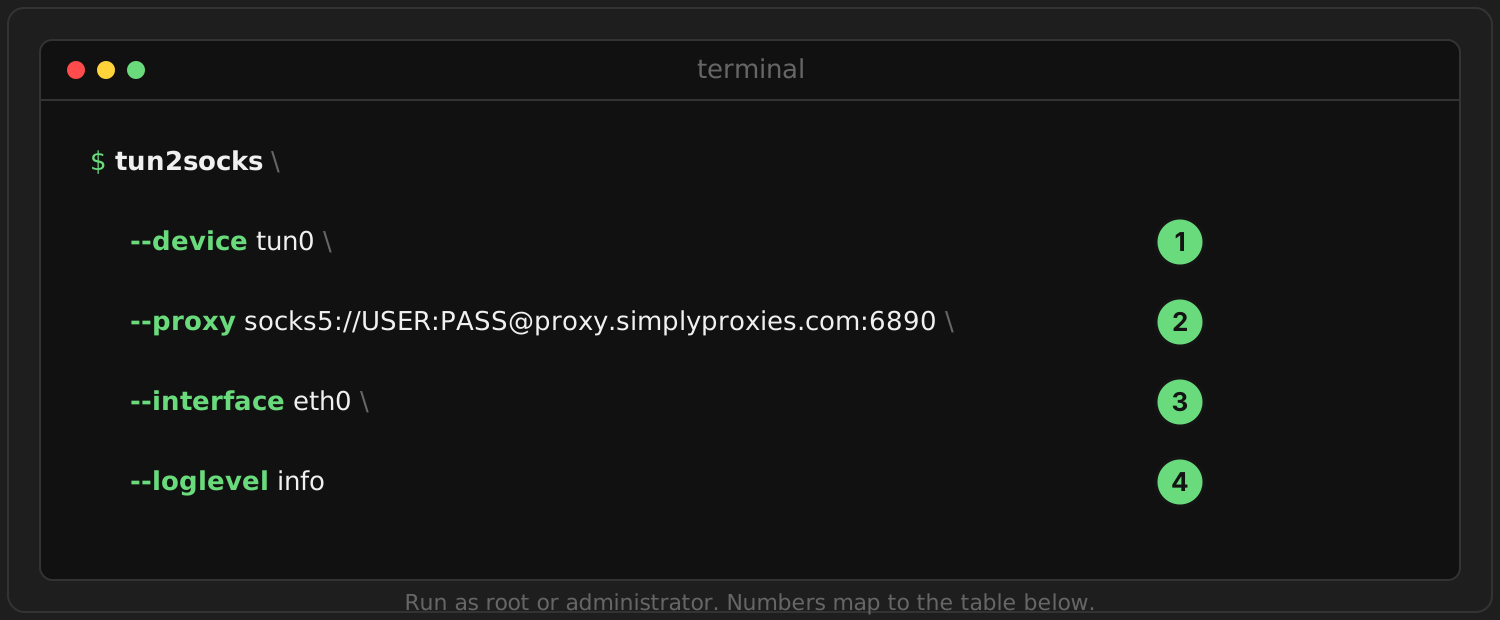
- --device. The TUN interface the tool creates and reads. Use
tun0on Linux, any freeutunname on macOS (the tool creates it), or the fixed namewintunon Windows. - --proxy. Your SOCKS5 endpoint and credentials in one URL:
socks5://USER:PASS@proxy.simplyproxies.com:6890. The sticky-session suffix works here exactly as on Android: put-session-myapp1on the username part to pin the exit IP. - --interface. Your physical network adapter (
eth0,en0, or the Windows adapter name). This is the subtle one: it binds the proxy connection itself to the real network so the tunnel's own traffic does not get routed back into the tunnel, which would create a loop. - --loglevel.
infowhile you are setting up and verifying;silentonce it runs unattended.
Every option at a glance
The tool's full option list, current as of v2.7.0:
| Option | What it does |
|---|---|
--config | Load settings from a YAML file instead of flags (see below) |
--device | TUN interface name, with optional driver prefix (core option 1) |
--proxy | [protocol://]host:port with embedded credentials; socks5, http and others (core option 2) |
--interface | Physical adapter the proxy connection binds to, avoiding route loops (core option 3) |
--loglevel | debug, info, warn, error or silent (core option 4) |
--mtu | Override the TUN device MTU; defaults are fine unless your network path is unusual |
--udp-timeout | Lifetime of idle UDP sessions; only relevant with a UDP-capable proxy, which a TCP-only service does not have |
--restapi | Serve live traffic statistics on a local HTTP address, handy for monitoring long-running rigs |
--tcp-auto-tuning | Let the userspace TCP stack size its buffers automatically; helps throughput on bulk transfers |
--tcp-rcvbuf / --tcp-sndbuf | Manual receive and send buffer sizes for the userspace stack, for tuning large downloads |
--tun-pre-up / --tun-post-up | Run a command before or after the TUN device comes up, e.g. to apply your routes automatically |
--fwmark | Firewall mark for policy routing on Linux and BSD, the cleaner alternative to metric-based routing |
--multicast-groups | Join multicast groups on the TUN device; rarely needed |
Or put it in a file
For rigs and unattended machines, a YAML config reads better than a long command line:
# config.yml
device: tun0
proxy: socks5://USER:PASS@proxy.simplyproxies.com:6890
interface: eth0
loglevel: silent
tun2socks --config config.ymlPlatform specifics
The tool creates the tunnel; pointing the operating system's default route at it takes two or three extra commands. Linux, full sequence:
ip tuntap add mode tun dev tun0
ip addr add 198.18.0.1/15 dev tun0
ip link set dev tun0 up
ip route add default via 198.18.0.1 dev tun0 metric 1
tun2socks --device tun0 --proxy socks5://USER:PASS@proxy.simplyproxies.com:6890 --interface eth0
The low metric wins over your existing default route, which stays in place as a fallback. If packets seem to vanish, disable reverse-path filtering on the affected interfaces (sysctl net.ipv4.conf.all.rp_filter=0).
On macOS, start tun2socks first so it creates the utun device, then bring the interface up with ifconfig and add the covering routes with route add; the exact command list is in the project's wiki examples. On Windows, drop the wintun driver next to the binary, assign the adapter an address and DNS server with netsh, and add a default route the same way. In all three cases the verification step is identical: point a browser at https://api.ipify.org and confirm you see the proxy exit.
On iOS there is no free F-Droid equivalent; paid App Store tools that implement the same NetworkExtension pattern (Shadowrocket and similar) can front a SOCKS5 proxy the same way.
DNS: The Part Everyone Forgets
Once all traffic moves into the tunnel, DNS has to move with it. If your device keeps resolving names through its old path, two things go wrong. First, you leak information about your browsing to whoever runs the old resolver. Second, and more damaging for geo-sensitive work, you get a mismatch: websites see a UK mobile IP connecting through a resolver in another country. That combination is precisely the kind of inconsistency anti-fraud systems look for.
Good tun2socks clients handle this by intercepting DNS queries in the TUN device and resolving them through the proxy, so the resolver sees the query coming from the exit IP. Two settings on your side help:
- Android Private DNS (Settings, Network, Private DNS) set to a DoT provider travels through the tunnel like any other TCP connection on port 853.
- Browser secure DNS (DoH over port 443) likewise rides the tunnel with no extra configuration.
After setup, run a DNS leak test (dnsleaktest.com is a convenient one) and confirm the resolvers listed are consistent with your exit IP's network, not your home ISP.
What Is Actually Encrypted
It is worth being precise about the three legs involved, because "it feels like a VPN" is not the same as "it encrypts like one":
| Leg | Encrypted? | Notes |
|---|---|---|
| Your apps to websites | Yes, by TLS | HTTPS traffic is end-to-end encrypted as always; the proxy relays bytes it cannot read |
| Your device to the proxy | No, on plain SOCKS5 | The connection is authenticated but not encrypted; on a shared network others can see that you talk to the proxy host |
| Proxy to websites | Yes, by TLS | Same end-to-end TLS; the exit adds its IP, not decryption |
For the work this setup is about (presenting a consistent UK mobile IP across a whole device), that model is fine: your content is protected by TLS everywhere, and the unprotected leg reveals only the proxy hostname, not your traffic. If you are on an untrusted network and want the device-to-proxy leg encrypted too, use an HTTPS proxy endpoint (TLS-wrapped CONNECT) in the individual apps that support it. For a fuller comparison of the two product categories, see our proxy vs VPN guide.
When This Setup Shines
- Apps with no proxy settings. Mobile clients, desktop apps, launchers and internal tools suddenly all go through your proxy with zero code changes.
- A whole device with a UK presence. App-store accounts, localised search results, streaming catalogues and region checks all behave as if the device sat in the UK on mobile data.
- Automation rigs and emulators. Any TCP-speaking software in the rig or VM becomes proxied by pointing its virtual network at the tunnel.
- Testing your own product from the exact IP class your UK mobile users come from.
And when the goal is plain privacy on an untrusted network rather than IP presentation, a conventional VPN remains the better tool. The two solve different problems; we compared them in detail here.
Practical Tips
- Watch the meter. Device-wide means OS updates and backups are billed like any other proxy traffic. Use per-app routing or Android's background-data controls if you are on a metered plan.
- Use sticky sessions when consistency matters. A
-session-myapp1suffix on the proxy username keeps the same exit IP for the session window, which is what account-based work usually wants. - Verify DNS, not just IP. An IP checker alone will not catch a resolver mismatch; run a DNS leak test after the first setup.
- Expect rotation otherwise. Mobile exit IPs rotate by design; that is part of what makes them look like real phones. Pin with sticky sessions when you need stability.
Summary
A SOCKS5 proxy plus a tun2socks client (SocksTun on Android, tun2socks on desktop) gives you the routing behaviour of a VPN with the IP quality of your proxy: every app on the device, zero per-app configuration, no root. Set it up, verify the exit IP, check DNS for leaks, and use sticky sessions when you want the IP to stay put. Just remember the encryption model is TLS end-to-end with an authenticated but unencrypted device-to-proxy leg, and choose accordingly when the network itself is hostile.
Try It With Real UK Mobile IPs
Set up a device-wide tunnel through genuine UK 4G/5G exits. 500 MB free, no card required.
Start Free Trial